> ## Documentation Index
> Fetch the complete documentation index at: https://docs.monieswitch.com/llms.txt
> Use this file to discover all available pages before exploring further.
# Upgrade your account
> How to upgrade your account
The Account Upgrade feature allows you to unlock additional capabilities and benefits for your business on our platform.
By upgrading your starter account, you'll gain unrestricted access to advanced tools and services, to help scale your operations.
Starter accounts are upgraded to a registered business account and Registered business accounts cannot be downgraded to a starter account.
## Prerequisites
Before you can upgrade your account, ensure the following:
1. Your business profile is a fully verified starter account with all required information and documents.
2. You have the necessary authorization to make changes to your account.
## Upgrade Process
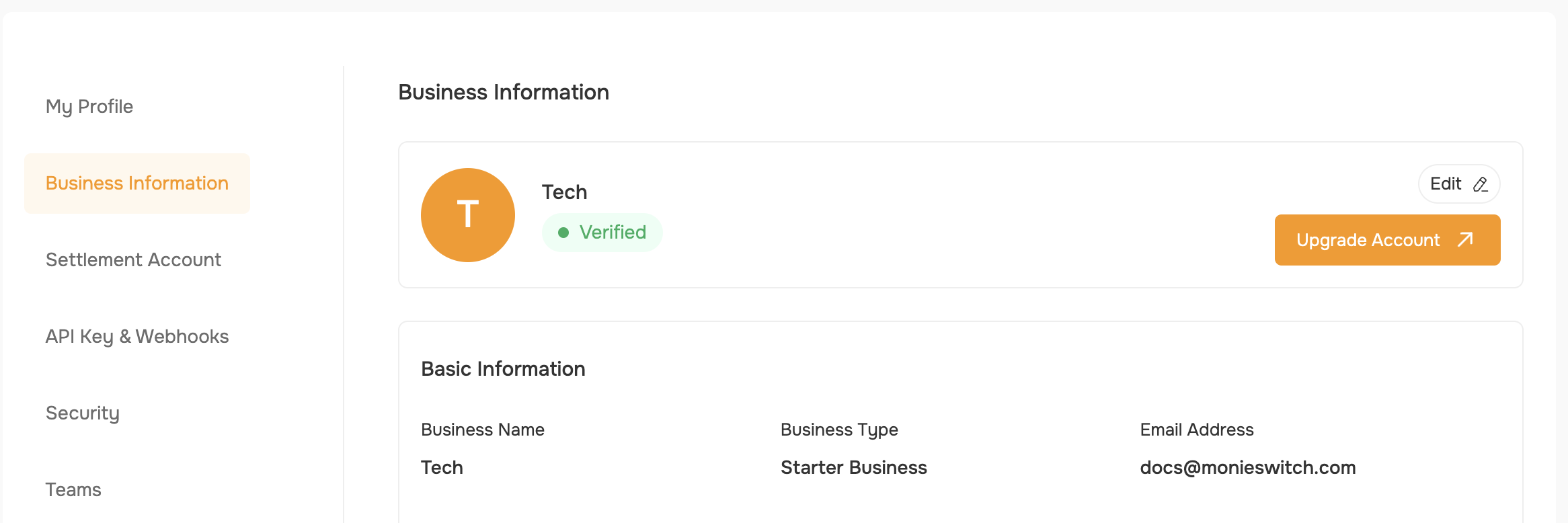
1. **Access the Upgrade Page**
* Log in to your account and navigate to the "Settings" section.
* Look for the "Business Information" section.
* If your account is a Starter account, you will see an **Upgrade Account** button.
 2. **Review and Update Account Details**
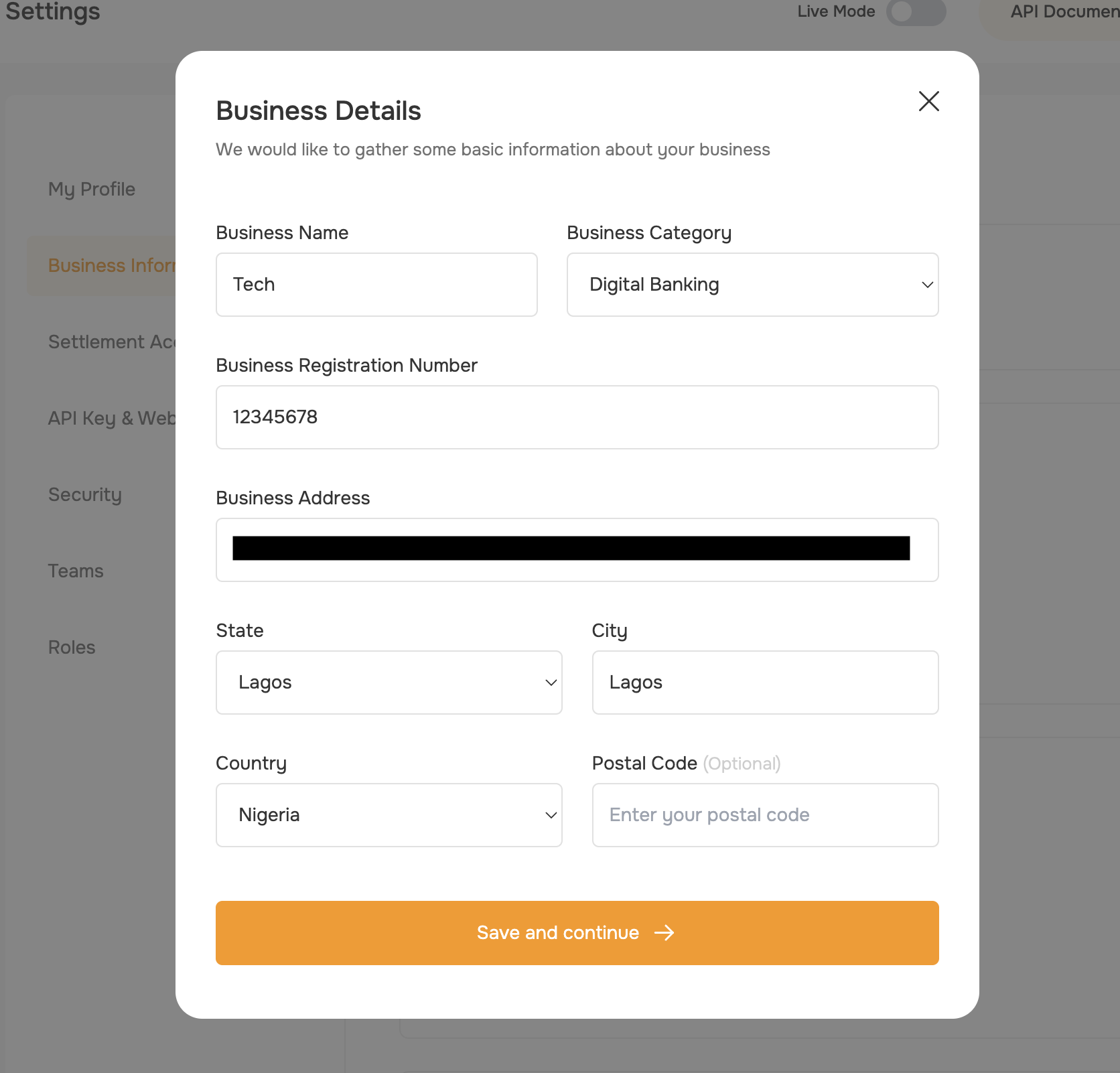
* Click the **Upgrade Account** button to open a dialog box.
* On the page, Fill in the required fields:
* Business Name (field will be auto-populated with your current business name, which you can update if needed.)
* Business Category
* Business Registration Number
* Business Address
* State
* Country
* City
* Postal Code (Optional)
* Click the **Save and Continue** button.
2. **Review and Update Account Details**
* Click the **Upgrade Account** button to open a dialog box.
* On the page, Fill in the required fields:
* Business Name (field will be auto-populated with your current business name, which you can update if needed.)
* Business Category
* Business Registration Number
* Business Address
* State
* Country
* City
* Postal Code (Optional)
* Click the **Save and Continue** button.
 3. **Upload Business Documents**
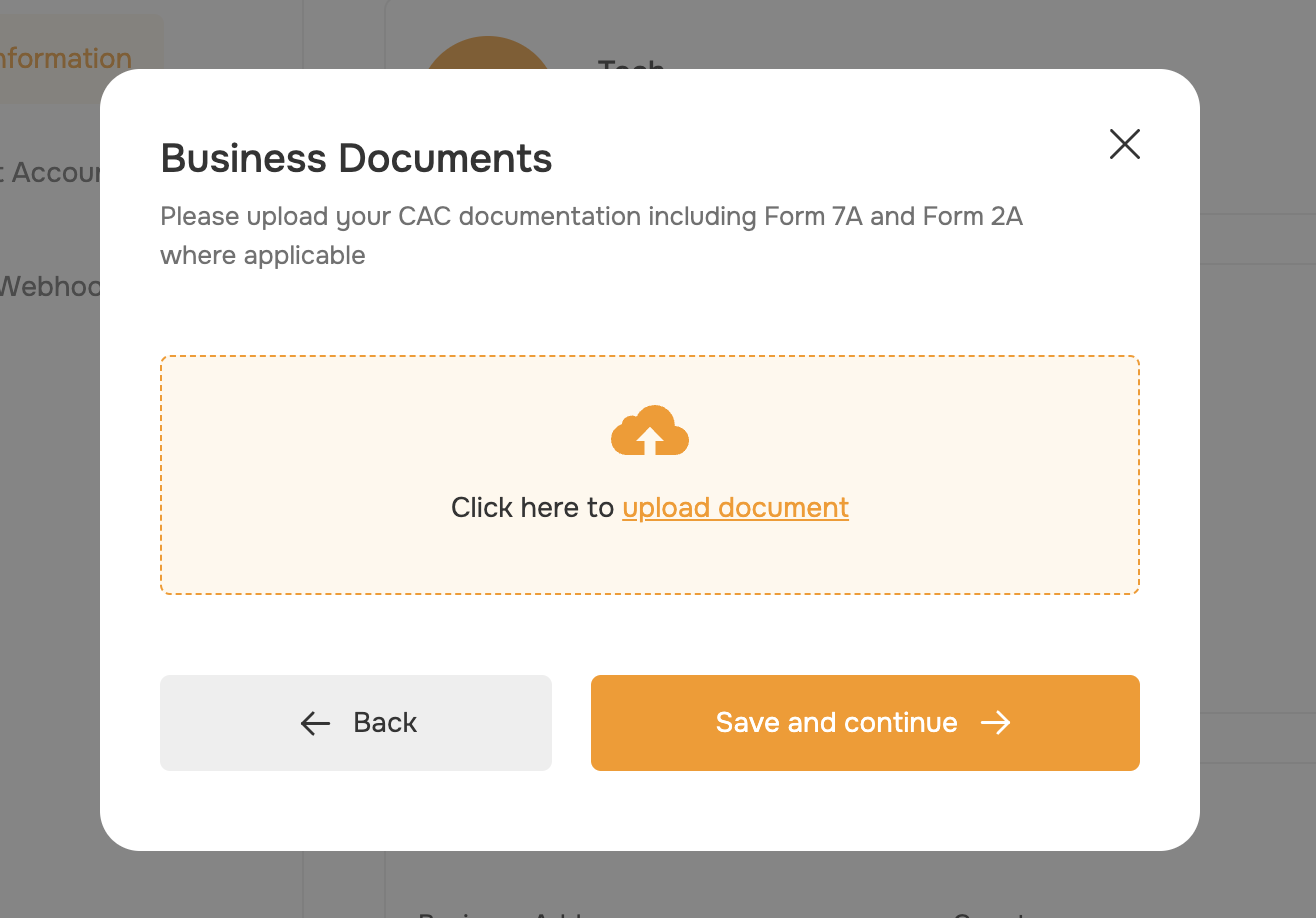
* On the next page, you'll need to upload your business documents, including Form 7A and Form 2A.
* Click the **Upload Document** to attach the required files.
* Once the uploads are complete, click the **Save and Continue** button.
3. **Upload Business Documents**
* On the next page, you'll need to upload your business documents, including Form 7A and Form 2A.
* Click the **Upload Document** to attach the required files.
* Once the uploads are complete, click the **Save and Continue** button.
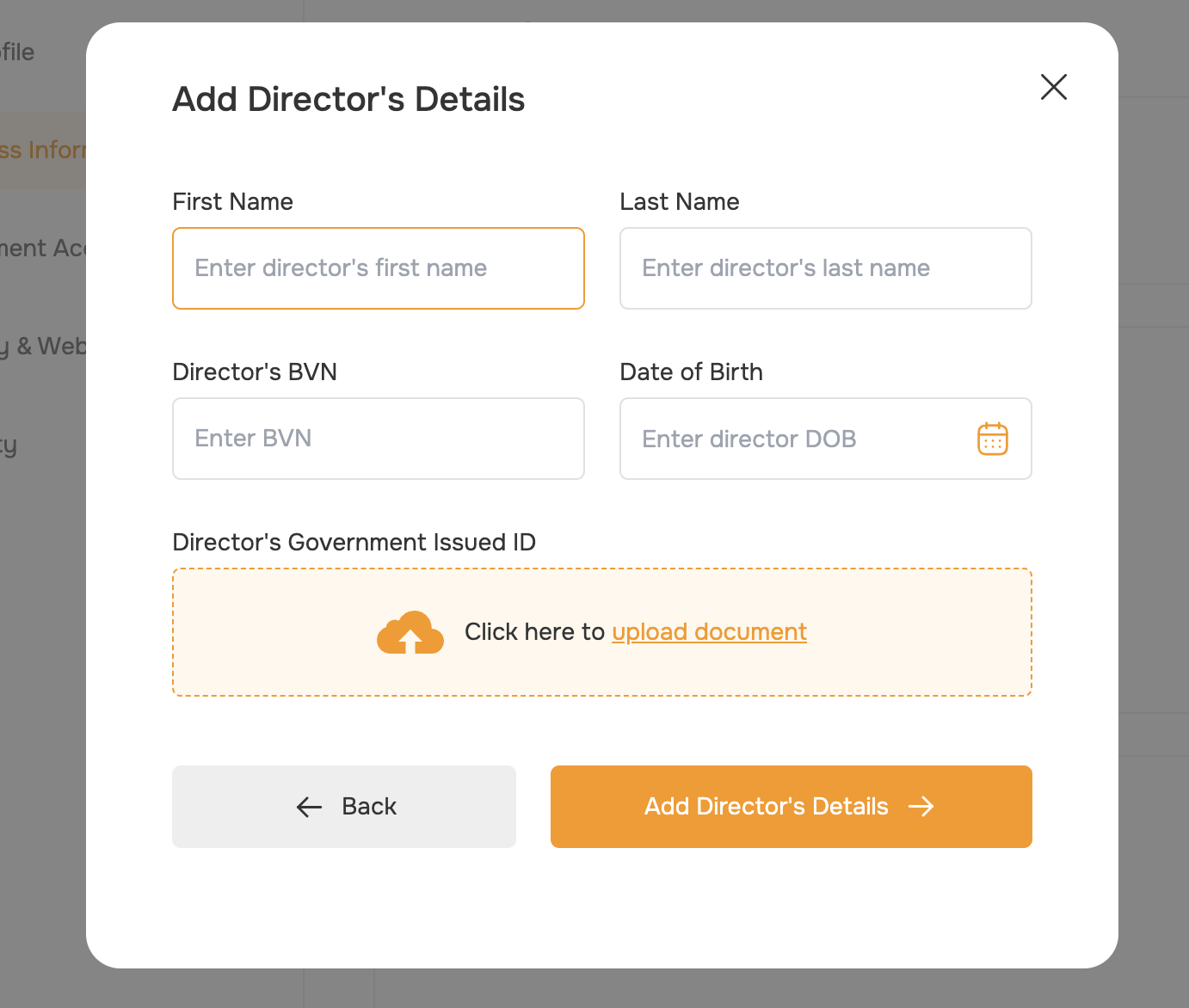
 4. **Add Director's Details**
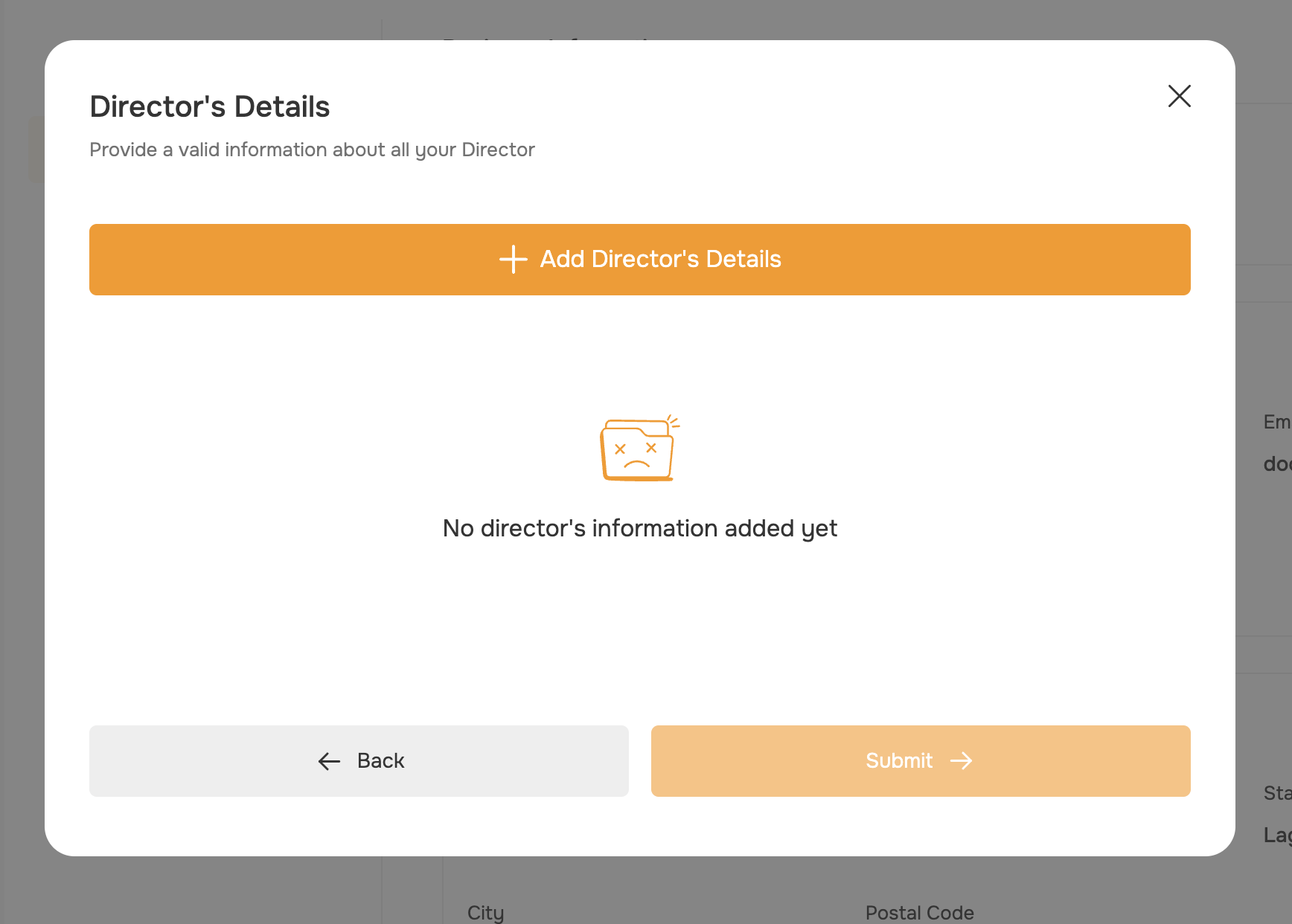 * On the final step, you'll need to provide your director's details.
* Click the **Add Director's Details** button to open a modal.
* Fill in the required fields:
* First Name
* Last Name
* Director's BVN
* Date of Birth
* Director's Government Issued ID
* Click the **Upload Document** to attach the director's ID document.
* Review the information and click **Add Director's Details** to save the details.
* You can repeat this process to add multiple directors if needed.
* After adding all the required director details, click the **Submit** button to complete the upgrade request.
* On the final step, you'll need to provide your director's details.
* Click the **Add Director's Details** button to open a modal.
* Fill in the required fields:
* First Name
* Last Name
* Director's BVN
* Date of Birth
* Director's Government Issued ID
* Click the **Upload Document** to attach the director's ID document.
* Review the information and click **Add Director's Details** to save the details.
* You can repeat this process to add multiple directors if needed.
* After adding all the required director details, click the **Submit** button to complete the upgrade request.
 5. **Review and Confirm**
* Carefully review the upgrade details, including the selected plan, payment method, and director's information.
* If everything looks correct, click **Submit** to finalize the process.
## Verification and Approval
After you submit your upgrade request, our team will review the provided information and documents. This process typically takes 2-3 business days.
Once your upgrade is approved, you'll receive a confirmation email and your account will be updated with the new plan and features. If there are any issues during the review, we'll reach out to you for additional information or clarification.
## Troubleshooting
Ensure that your business profile is fully verified starter account and that you have the necessary permissions to access the Upgrade feature.
If you still can't find it, please contact our support team for assistance.
Our team typically processes upgrade requests within 2-3 business days. However, there may be instances where additional information or clarification is needed,
which can cause a slight delay. If your request has been pending for more than 3 business days, please contact our support team for an update.
Make sure the document is in a supported format (PDF, JPG, or PNG) and does not exceed the maximum file size.
If you're still experiencing issues, try a different device or browser, or contact our support team for further assistance.
## Next Steps
invite your team members
enable two-factor authentication
Enable maker-checker
5. **Review and Confirm**
* Carefully review the upgrade details, including the selected plan, payment method, and director's information.
* If everything looks correct, click **Submit** to finalize the process.
## Verification and Approval
After you submit your upgrade request, our team will review the provided information and documents. This process typically takes 2-3 business days.
Once your upgrade is approved, you'll receive a confirmation email and your account will be updated with the new plan and features. If there are any issues during the review, we'll reach out to you for additional information or clarification.
## Troubleshooting
Ensure that your business profile is fully verified starter account and that you have the necessary permissions to access the Upgrade feature.
If you still can't find it, please contact our support team for assistance.
Our team typically processes upgrade requests within 2-3 business days. However, there may be instances where additional information or clarification is needed,
which can cause a slight delay. If your request has been pending for more than 3 business days, please contact our support team for an update.
Make sure the document is in a supported format (PDF, JPG, or PNG) and does not exceed the maximum file size.
If you're still experiencing issues, try a different device or browser, or contact our support team for further assistance.
## Next Steps
invite your team members
enable two-factor authentication
Enable maker-checker