> ## Documentation Index
> Fetch the complete documentation index at: https://docs.monieswitch.com/llms.txt
> Use this file to discover all available pages before exploring further.
# WooComerce
> Integrate Monieswitch with your WooCommerce store.
Monieswitch is a secure payment gateway for WooCommerce that enables seamless bank transfer payments. The plugin provides a popup interface for transactions and offers flexible fee management options.
## Key Features
* Secure popup payment interface
* Bank transfer support (credit card payments coming soon)
* Customizable merchant settings
* Automated order completion
* Fee bearer management
* Customer information collection
* Shortcode integration
* Transaction logging
## Quick Start
### Installation
2. Navigate to WordPress Dashboard → Plugins → Search for "Monieswitch" → Add New
3. install the plugin
4. Click "Activate"
### Basic Configuration
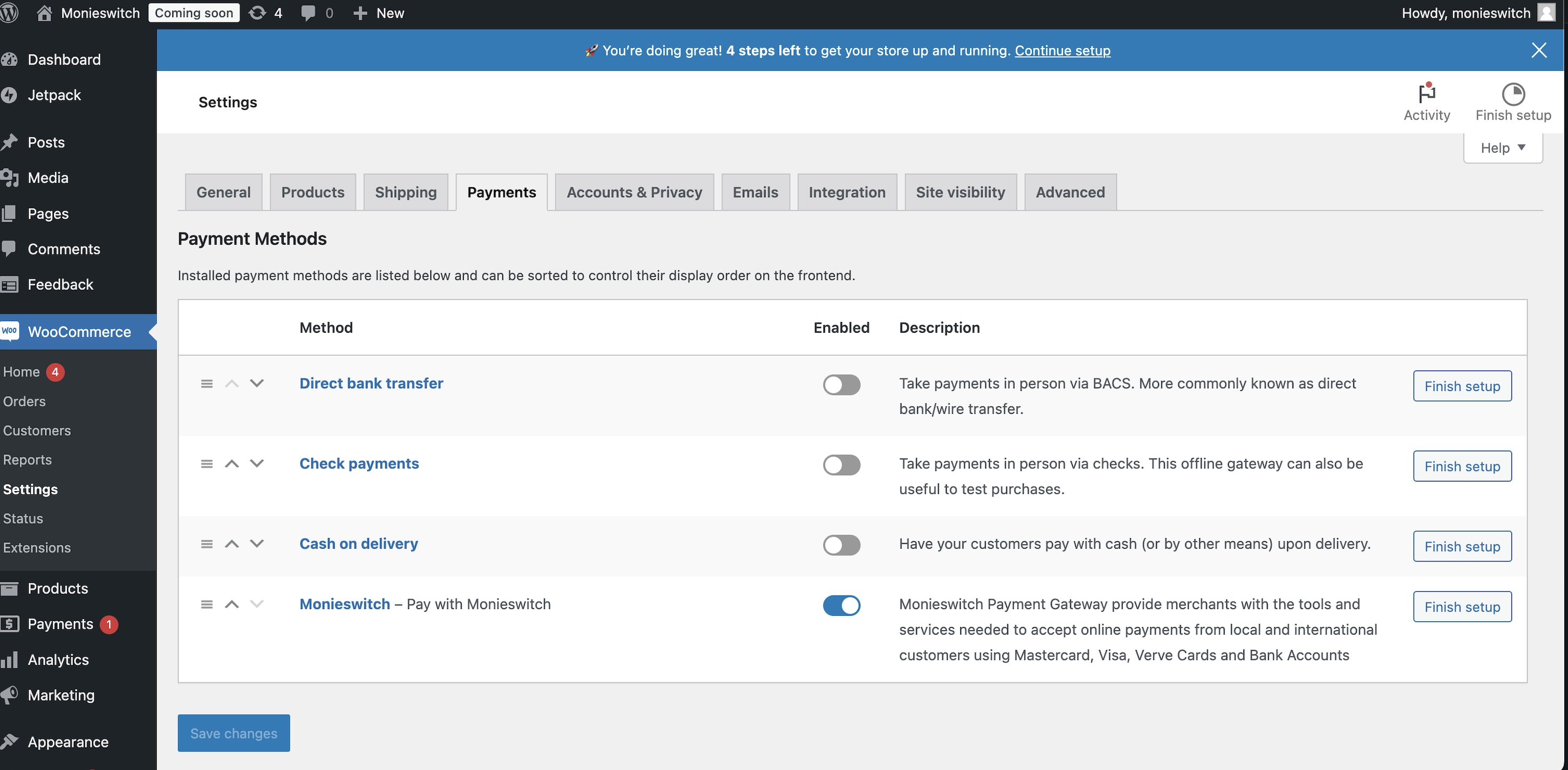
Navigate to WooCommerce → Settings → Payments and click "Manage" next to Monieswitch, or access settings directly from the plugins list.
 ## Configuration Options
### General Settings
| Setting | Description | Default |
| -------------- | ------------------------------------------- | ----------------------------- |
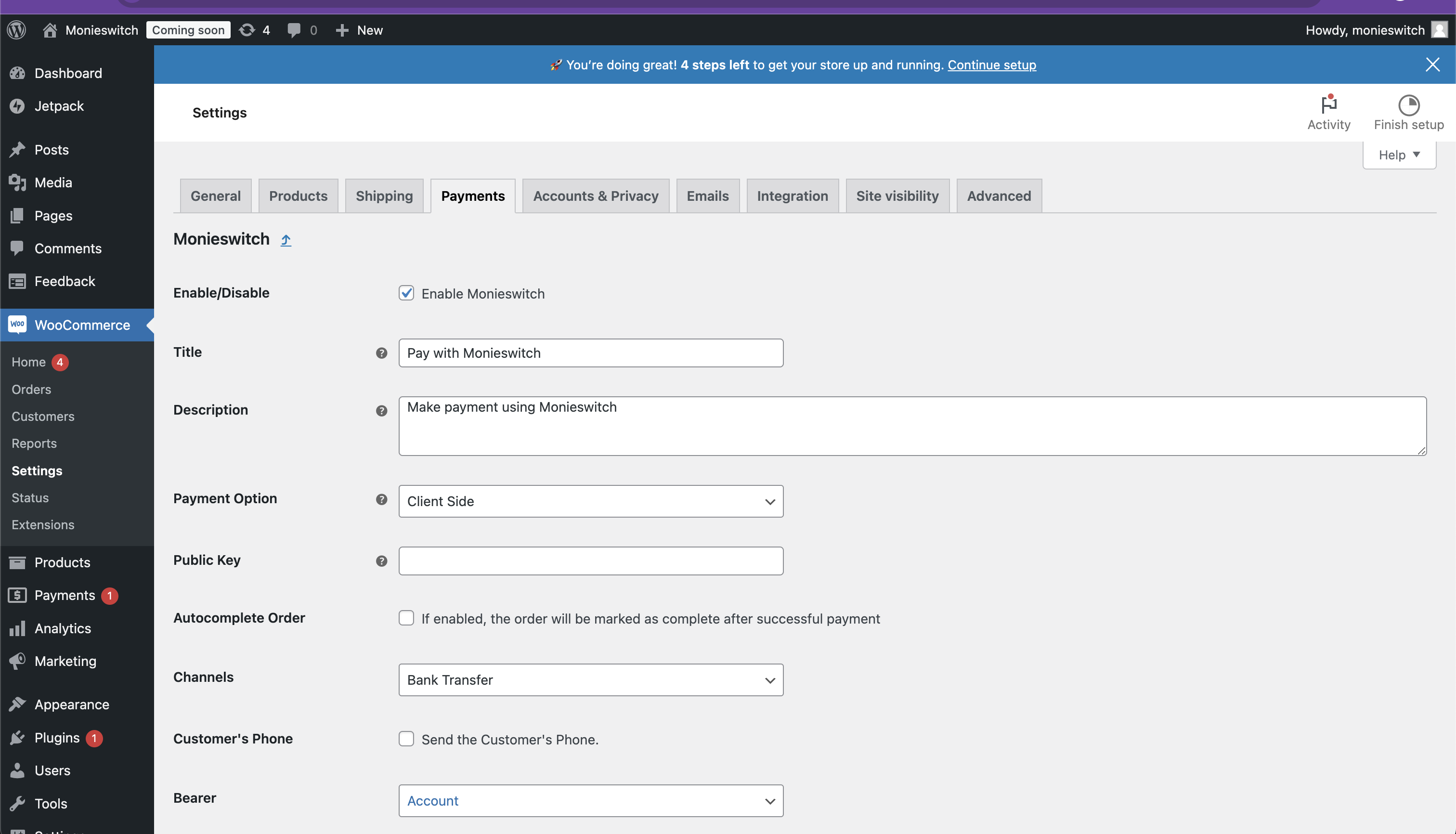
| Enable/Disable | Toggle Monieswitch availability at checkout | Disabled |
| Title | Payment option label shown to customers | "Pay with Monieswitch" |
| Description | Additional details displayed at checkout | - |
| Payment Option | Transaction interface type | Popup (only available option) |
## Configuration Options
### General Settings
| Setting | Description | Default |
| -------------- | ------------------------------------------- | ----------------------------- |
| Enable/Disable | Toggle Monieswitch availability at checkout | Disabled |
| Title | Payment option label shown to customers | "Pay with Monieswitch" |
| Description | Additional details displayed at checkout | - |
| Payment Option | Transaction interface type | Popup (only available option) |
 ### Authentication
| Setting | Description |
| ---------- | ------------------------------- |
| Public Key | Your Monieswitch public API key |
| Secret Key | Your Monieswitch secret API key |
### Transaction Settings
| Setting | Description | Options |
| ------------------- | --------------------------------------------------- | ----------------------------------- |
| Auto-complete Order | Automatically mark orders as complete after payment | Enabled/Disabled |
| Channels | Available payment methods | Bank Transfer (only current option) |
| Customer Phone | Include customer phone number in payment request | Enabled/Disabled |
### Fee Management
| Setting | Description | Options |
| ------------- | ------------------------------------------------ | ------------------------------- |
| Bearer Option | Entity responsible for transaction fees | Account / Customer / Subaccount |
| Subaccount | Required when Bearer Option is set to Subaccount | Email address |
## Implementation
### Checkout Integration
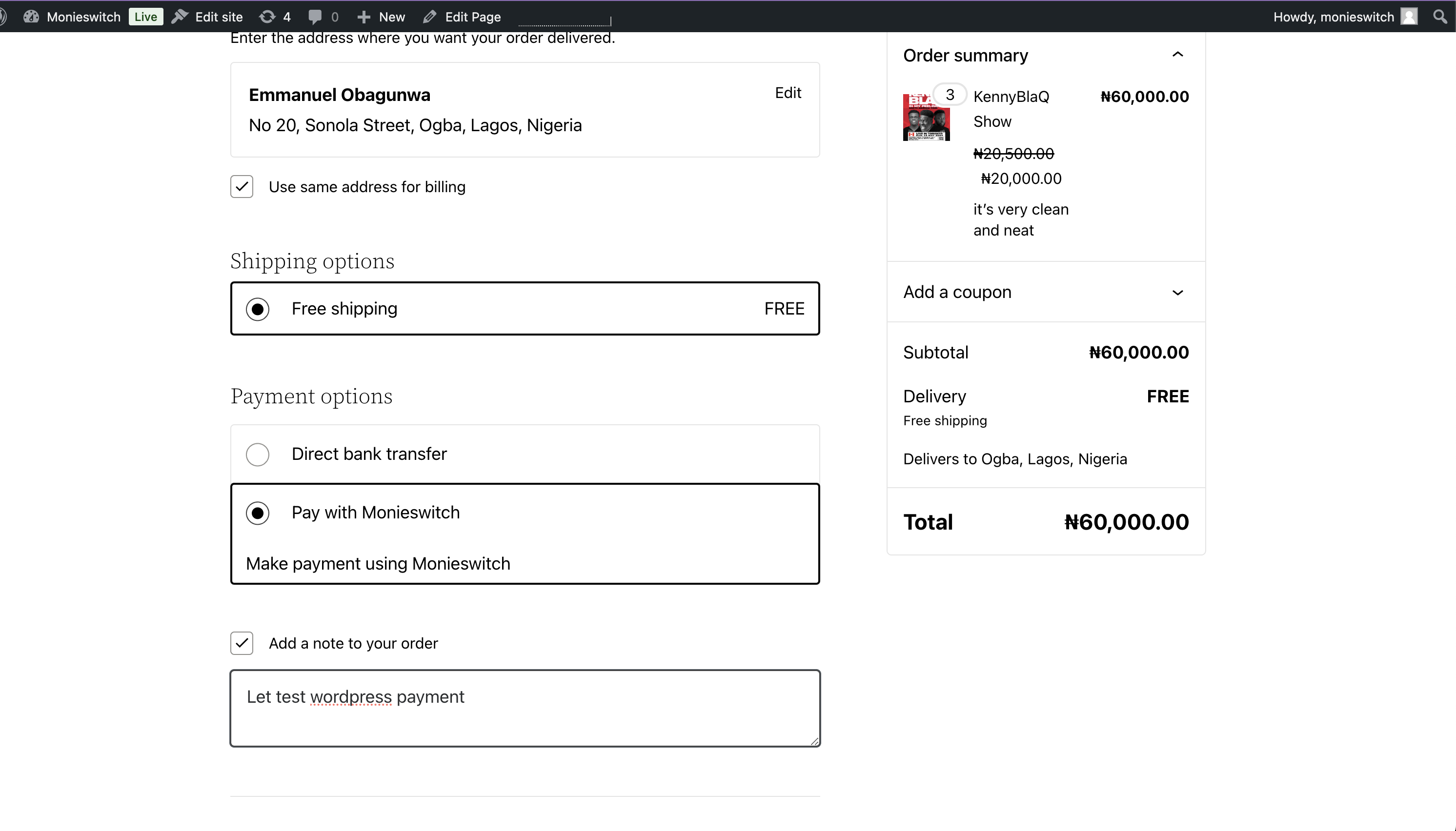
Monieswitch automatically appears as a payment option during the WooCommerce checkout process when enabled.
### Authentication
| Setting | Description |
| ---------- | ------------------------------- |
| Public Key | Your Monieswitch public API key |
| Secret Key | Your Monieswitch secret API key |
### Transaction Settings
| Setting | Description | Options |
| ------------------- | --------------------------------------------------- | ----------------------------------- |
| Auto-complete Order | Automatically mark orders as complete after payment | Enabled/Disabled |
| Channels | Available payment methods | Bank Transfer (only current option) |
| Customer Phone | Include customer phone number in payment request | Enabled/Disabled |
### Fee Management
| Setting | Description | Options |
| ------------- | ------------------------------------------------ | ------------------------------- |
| Bearer Option | Entity responsible for transaction fees | Account / Customer / Subaccount |
| Subaccount | Required when Bearer Option is set to Subaccount | Email address |
## Implementation
### Checkout Integration
Monieswitch automatically appears as a payment option during the WooCommerce checkout process when enabled.
 ### Shortcode Implementation
Use the `[monieswitch]` shortcode to add payment buttons anywhere on your site.
#### Basic Usage
```
[monieswitch amount="10000"]
```
#### Advanced Usage
```
[monieswitch
amount="10000"
currency="USD"
channel="BANK"
bearer="subaccount"
subaccount="subaccount@example.com"
]
```
#### Shortcode Parameters
| Parameter | Description | Required | Options |
| ---------- | -------------------- | --------------------------- | --------------------------- |
| amount | Payment amount | Yes | Numeric value |
| currency | Transaction currency | No | Standard currency codes |
| channel | Payment method | No | BANK |
| bearer | Fee bearer | No | account/customer/subaccount |
| subaccount | Subaccount email | Only if bearer="subaccount" | Valid email |
### Payment Flow
1. Customer clicks the payment button
2. Popup displays with:
* Transaction amount
* Email field
* Phone number field (if enabled)
3. Customer confirms payment
4. System processes transaction
5. Order status updates based on configuration
## Troubleshooting
To access transaction logs:
1. Navigate to WooCommerce → Status → Logs
2. Locate `monieswitch_woocommerce` log file
3. View detailed transaction information and error messages
{/* - Currently supports bank transfers only */}
{/* - Bearer options limited to account, customer, or subaccount */}
{/* - Credit card payment support
- Additional payment interface options
- Enhanced payment channel selection */}
### Shortcode Implementation
Use the `[monieswitch]` shortcode to add payment buttons anywhere on your site.
#### Basic Usage
```
[monieswitch amount="10000"]
```
#### Advanced Usage
```
[monieswitch
amount="10000"
currency="USD"
channel="BANK"
bearer="subaccount"
subaccount="subaccount@example.com"
]
```
#### Shortcode Parameters
| Parameter | Description | Required | Options |
| ---------- | -------------------- | --------------------------- | --------------------------- |
| amount | Payment amount | Yes | Numeric value |
| currency | Transaction currency | No | Standard currency codes |
| channel | Payment method | No | BANK |
| bearer | Fee bearer | No | account/customer/subaccount |
| subaccount | Subaccount email | Only if bearer="subaccount" | Valid email |
### Payment Flow
1. Customer clicks the payment button
2. Popup displays with:
* Transaction amount
* Email field
* Phone number field (if enabled)
3. Customer confirms payment
4. System processes transaction
5. Order status updates based on configuration
## Troubleshooting
To access transaction logs:
1. Navigate to WooCommerce → Status → Logs
2. Locate `monieswitch_woocommerce` log file
3. View detailed transaction information and error messages
{/* - Currently supports bank transfers only */}
{/* - Bearer options limited to account, customer, or subaccount */}
{/* - Credit card payment support
- Additional payment interface options
- Enhanced payment channel selection */}